Sales List
After a sale is created, Batuly gives you complete control to review the transaction and return any item or the entire invoice quickly and accurately. Whether it’s a pricing error, product issue, or customer change of mind, you can handle it all from the sales section.
Viewing All Sales
To access your completed sales, click on the Sales option in the sidebar.

- View a list of all past sales invoices
- Search and filter by customer, invoice number, or date
- See total amount, payment method, and status (paid, due, etc.)
Viewing Individual Sale Details
Click on any invoice to open its full sales details.

Here you can:
- View all sold items, price, quantity, and discounts
- See payment summary and tax applied
- Print or download the invoice for sharing or records
Returning Items (Individual Product Return)
To return a single product:
- Click on the Return Product button next to the item you want to return
- A modal will appear to:
- Enter quantity to return
- Adjust return amount (if needed)
- Add an optional return note
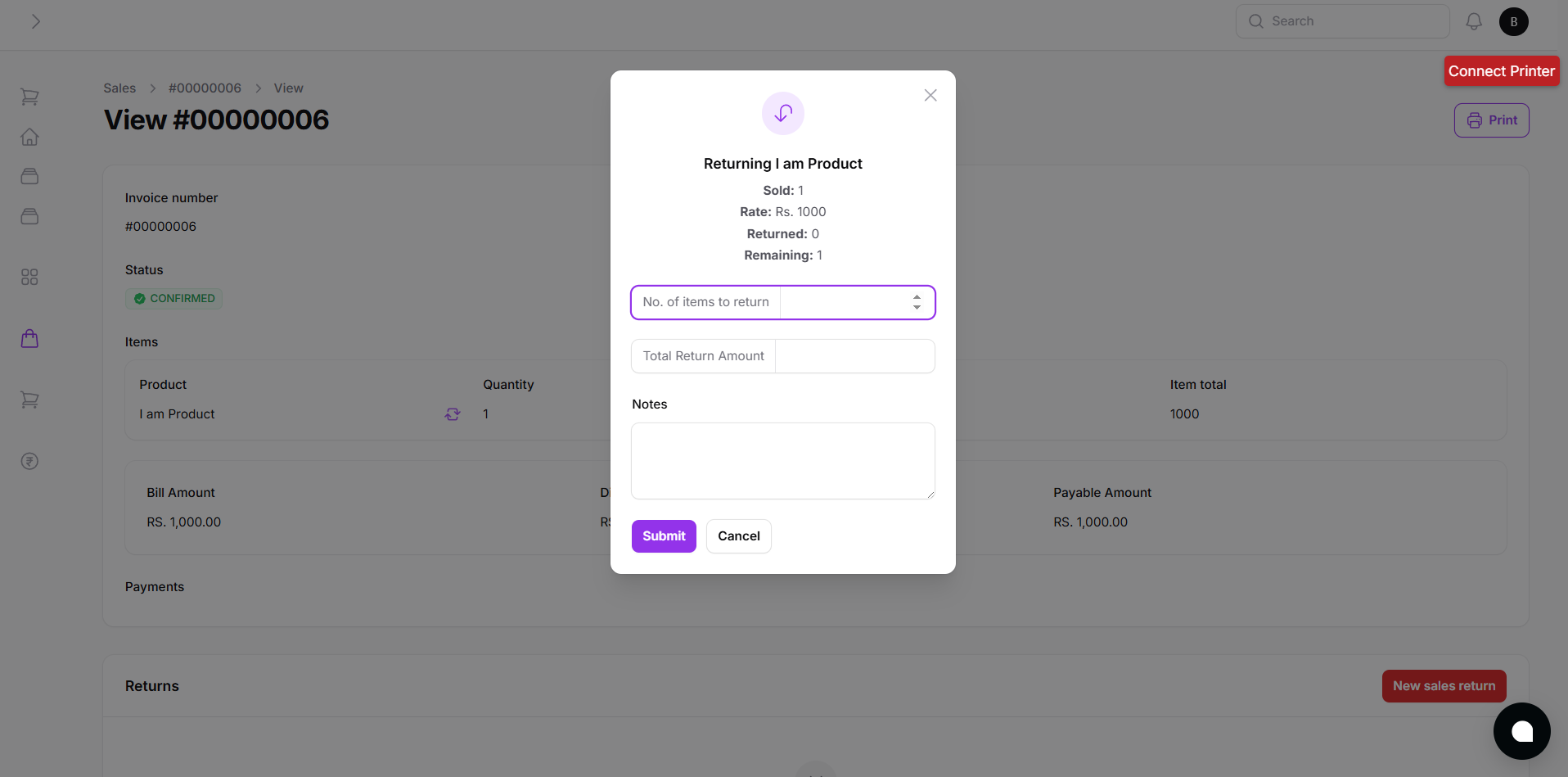
The returned item is:
- Removed from inventory
- Reflected in customer ledger
- Tracked in sales and tax reports
Returning Entire Sale
If the entire sale needs to be reversed:
- Click the New Sales Return button
- A modal appears to:
- Enter return quantity and value
- Add a return note or reason
- Confirm the return

How Sales Returns Are Handled
Every return action:
- Adjusts stock/inventory automatically
- Updates the customer’s ledger
- Reflects in profit, tax, and finance reports
- Tracks refund or balance adjustment
Returns are linked to the original invoice for full traceability.
Summary
With Batuly’s sales return flow, you can:
- Handle customer returns with ease
- Maintain transparency in financial records
- Keep inventory accurate
- Automate all ledger entries and adjustments
All in just a few clicks, no manual edits, no confusion.