Purchase Entry
Creating and managing purchases in Batuly is simple and secure. Every entry you make is automatically recorded and reflected in your inventory, reports, and supplier ledger, ensuring seamless operations and transparency.
Navigating to Purchases
To start, click on the Purchases option from the sidebar.
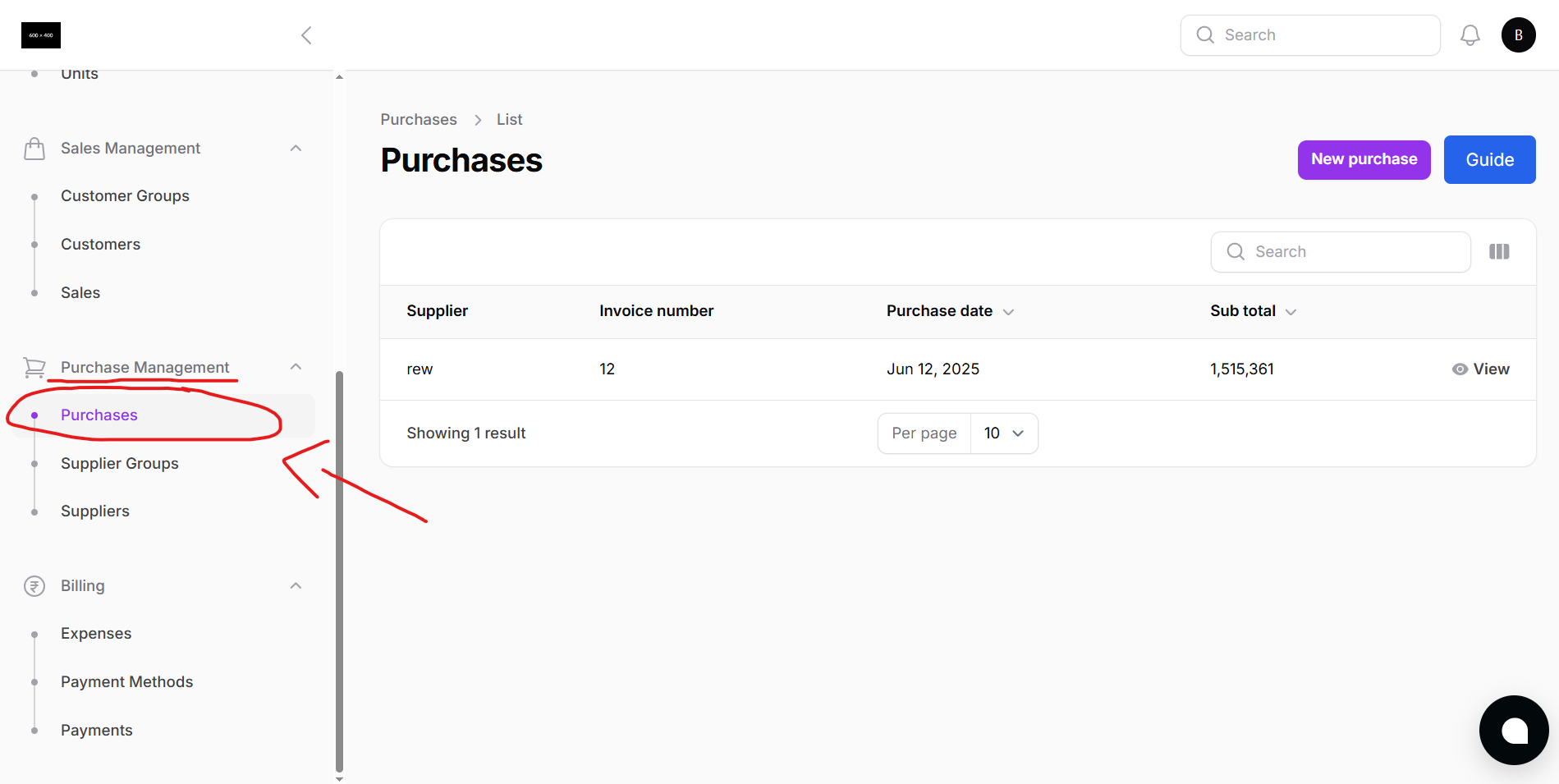
This will open the Purchase List page, showing all your past purchase invoices.
Purchase List Overview
This page displays all previously created purchase invoices.
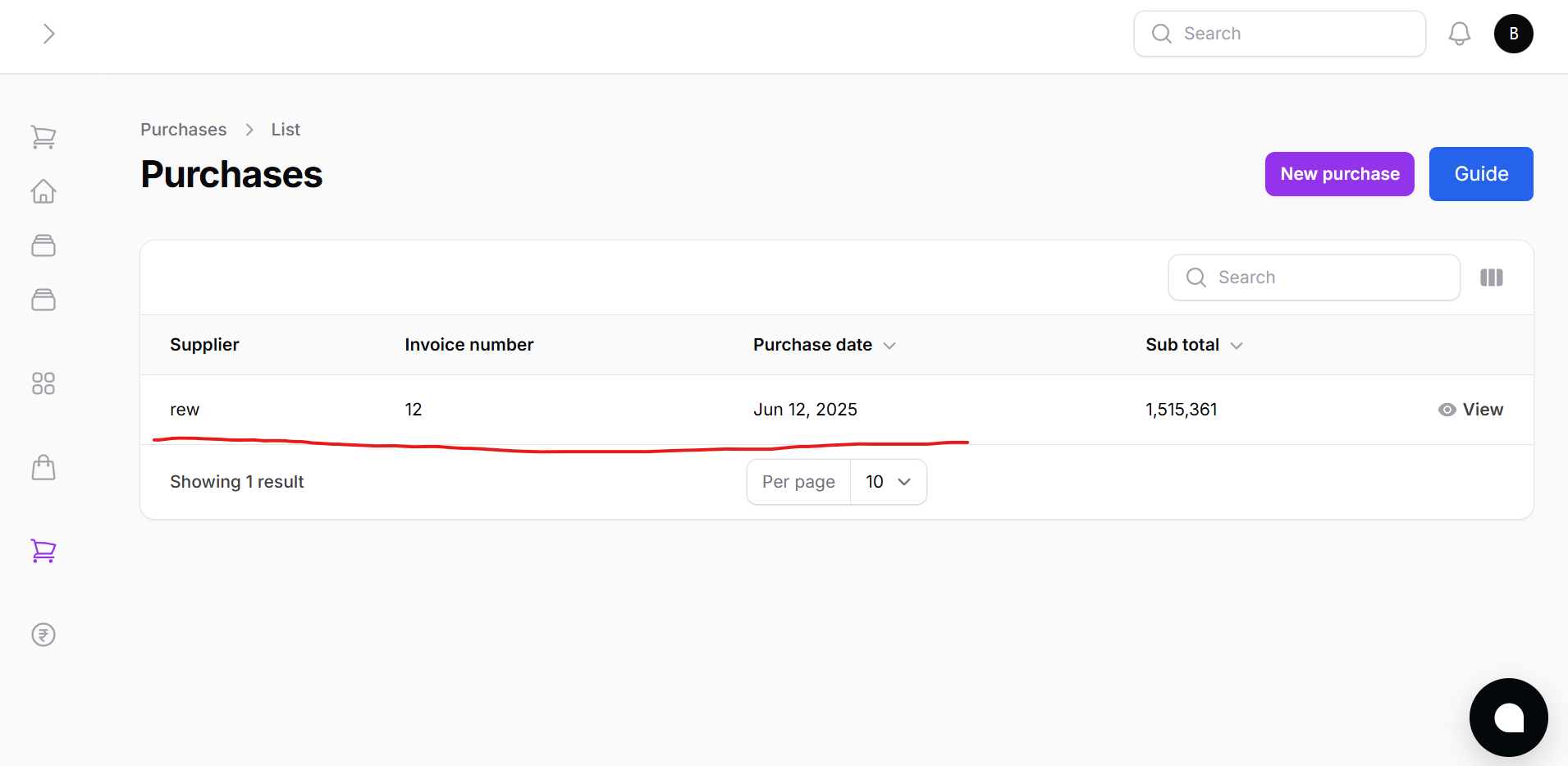
Features:
- View Only: Purchases cannot be deleted to ensure audit trail
- Each row displays key details: supplier, date, amount, and payment status
Creating a New Purchase
Click on the New Purchase button to open the purchase entry form.
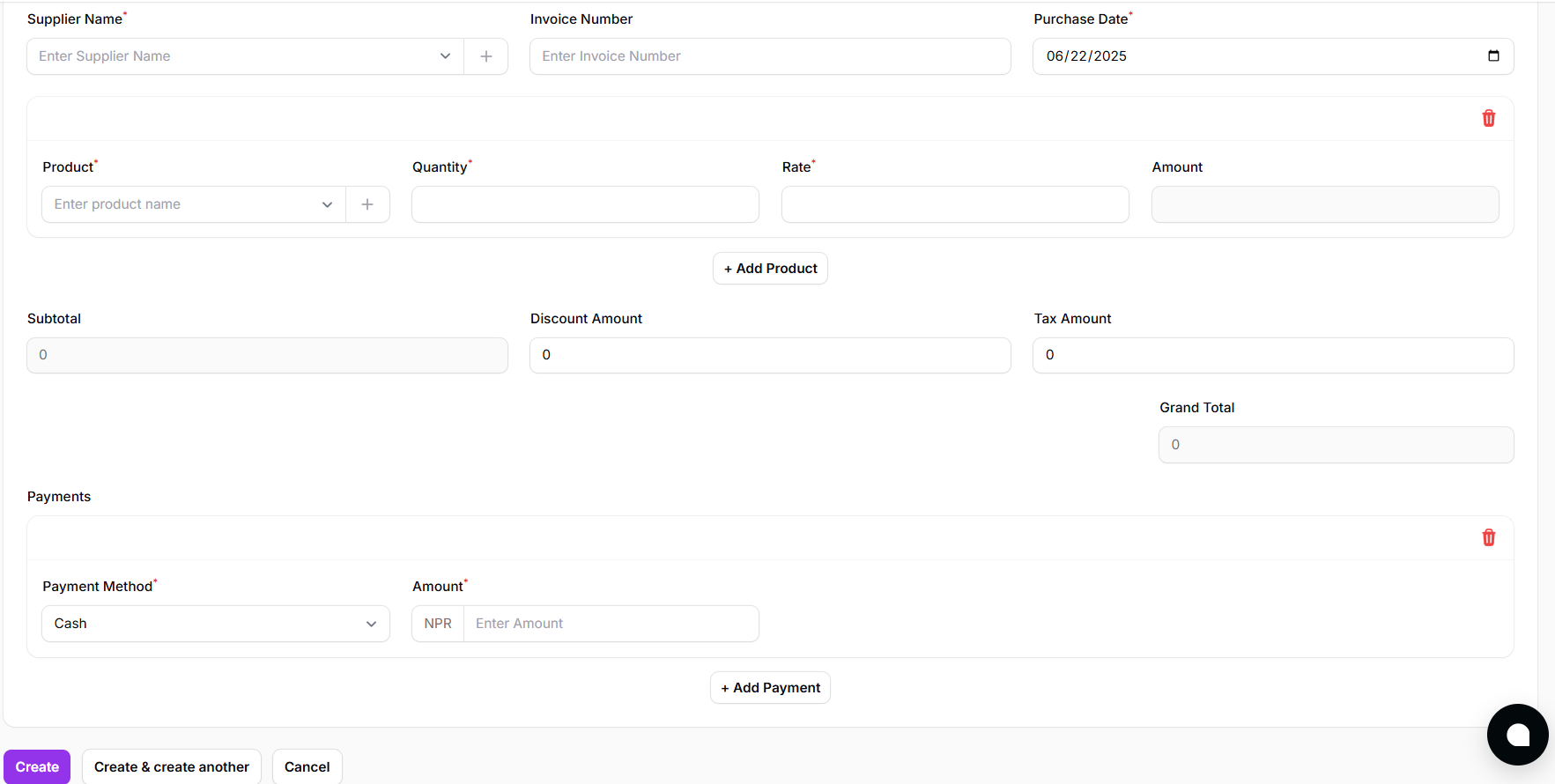
Steps to Create a New Purchase:
Select Supplier
- Choose from the dropdown
- Or create a new supplier directly from this page
Enter Purchase Details
- Invoice Number
- Purchase Date (select from date picker)
Add Products
- Select existing products from the dropdown
- Or quickly create a new product inline
- Enter:
- Quantity
- Rate
- Discount (optional)
- Tax (optional)
Select Payment Method
- Full Payment: Pays the invoice entirely
- Half Payment: Enter partial amount
- Full Due: Mark entire invoice as due
Choose:
- Create to save and close
- Create and Add Another to continue adding more without closing the form
Each purchase entry is automatically added to:
- Inventory stock levels
- Supplier ledger
- Financial reports
Purchase Return
Batuly allows users to return purchased items easily, either fully or partially. Whether you’ve received damaged goods, incorrect items, or simply need to adjust inventory, you can handle it directly from the purchase invoice.
Viewing Purchase Invoice Details
From the Purchases list, click on any invoice row to open its full details.
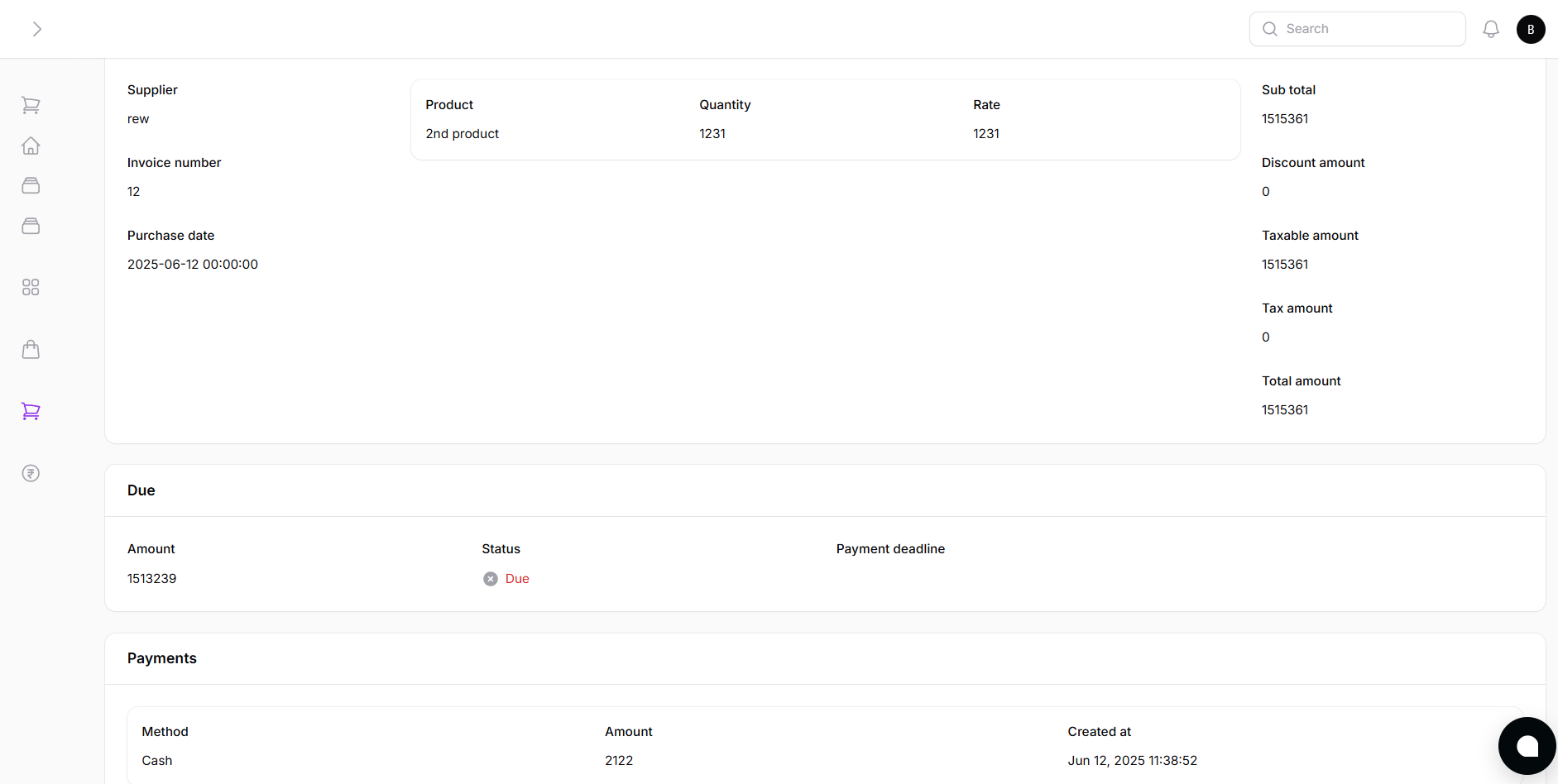
You’ll see:
- Full breakdown of purchased products
- Quantities, rates, taxes, discounts
- Invoice metadata: supplier, date, invoice number
- Print Invoice option to share or keep a record
Returning Individual Items
To return a single item from the purchase:
- Click the Return Product button next to the item you want to return
- A small modal or inline option appears to:
- Enter Quantity to Return
- Enter Return Amount
- Optionally add a Return Note
Once submitted:
- The item is marked as returned
- Inventory is automatically adjusted
- Supplier ledger is updated with the return
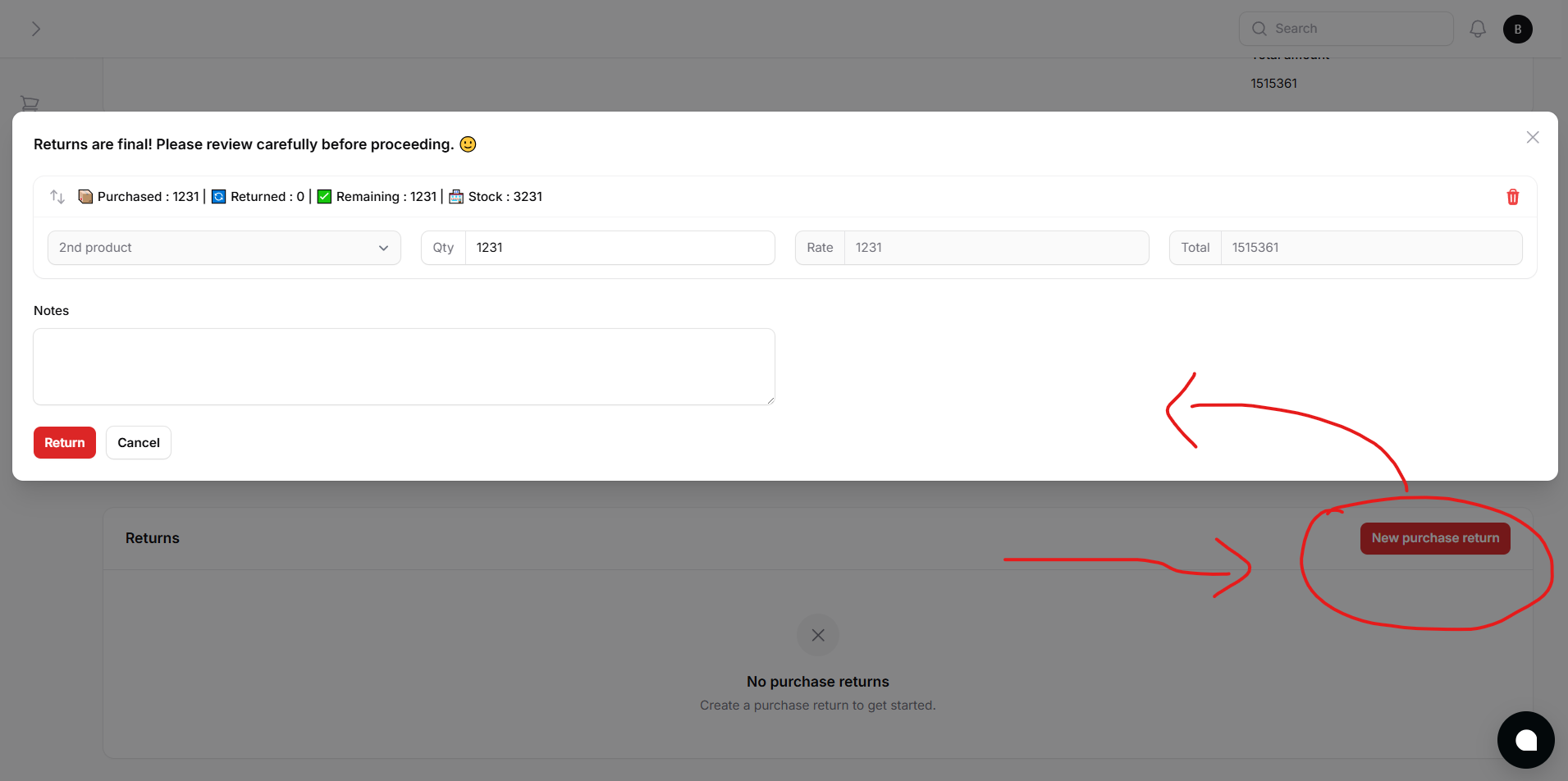
Returning Entire Invoice
To return the entire purchase:
- Click the New Purchase Return button on the invoice detail page
- A modal will appear to:
- Enter return quantities (for all or selected items)
- Confirm amounts
- Add a general return note
Once processed:
- All items are marked as returned
- Ledger and reports reflect the return
- Return amount is recorded, with or without refund as applicable
Return Summary and Tracking
All purchase returns are:
- Linked to the original purchase invoice
- Automatically reflected in:
- Supplier ledger
- Inventory levels
- Financial and tax reports
With batuly, every return is traceable and neatly recorded, keeping your operations clean and your records compliant.
With batuly, you can track every rupee spent, accurately and effortlessly.